2013-11-06
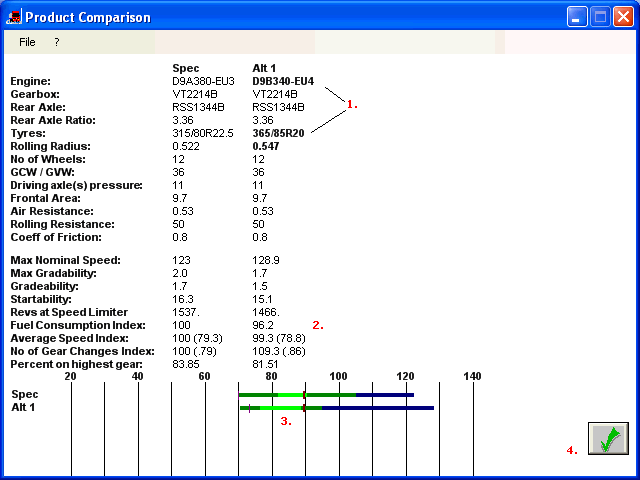
Product Comparison is used to compare the calculated data from Performance Summary for all entered alternatives (Spec, Alt 1, Alt 2 etc.).
Product Comparison also gives the option to view fuel consumption index. Tick the With indexed fuel consumption box in the Main Window (only possible in the Spec window when Performance Summary is chosen). A window to Select Road appropriate for the specified application will show.
NOTE! Fuel consumption index is only an approximate figure calculated from data in ROADSIM. More on the restrictions of calculating fuel consumption, how fuel consumption depends on road profile etc. in PERF Limitations.
Note the following:
Performance Specifications in Alt 1, Alt 2 etc. that is different from the main Spec is shown in bold. In this example, Engine, Tyres and Rolling Radius.
The fuel consumption means diesel consumption (urea not included).
Fuel Consumption Index, Average Speed Index, No of gear Changes Index, Percent on highest gear. Will only show when With indexed fuel consumption box is ticked in Main Window>>Spec and a road is selected.
Example: The main Spec has Index 100 and Alt 1 has 97 as fuel consumption index. This means that Alt 1 has 3% lower consumption than the main spec. If Alt 1 has 103, it means that Alt 1 has 3 % higher consumption than the main spec. The same principle for the other indexes.
The value in parentheses is the actual value (not presented for the fuel consumption index). For No of Gear Changes Index it is the number of shifts per km.
The Speed Range shown in light green is the Sweet Spot Speed Range. Other colors are the same as in the speedometer in Performance Summary.
Exit Product Comparison (back to Performance Summary).
(The road selections in Product Comparison are the same as in ROADSIM, but will give a different layout as ROADSIM gives more options to e.g. combine multiple roads.)
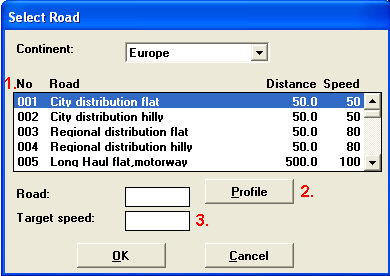
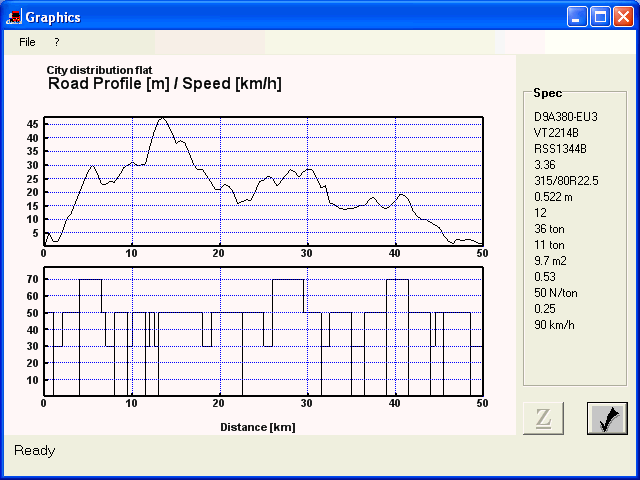
The Road Selection contains several different Roads with different Target speeds. The typical target speed is presented. To see the max target speed, click on the Profile button and look in the graph. Choose a road that is appropriate for the specified application (use Continent to select the geographical area you are interested in).
City distribution
Regional distribution
Long Haul
Construction
Waste truck
View Road and Target speed Profile. In target speed you can also see the number of stops.
Show/Hide Image
The target speed presented is the typical target speed on the road. This value can be changed, but this will change the target speed for the whole road. Example: The target speed for Motorway Belgium is 90 Km/h. If you set Target speed to 110 Km/h, you will raise the target speed for the whole road by a factor 110/90. If you want to limit the max target speed, set the Speed Limiter in the Main window instead. This will keep the target speed that is lower than the speed limter but "cut off" the peaks in the target speed that are higher than the speed limter.
To see the max target speed, click on the Profile button and look in the graph.